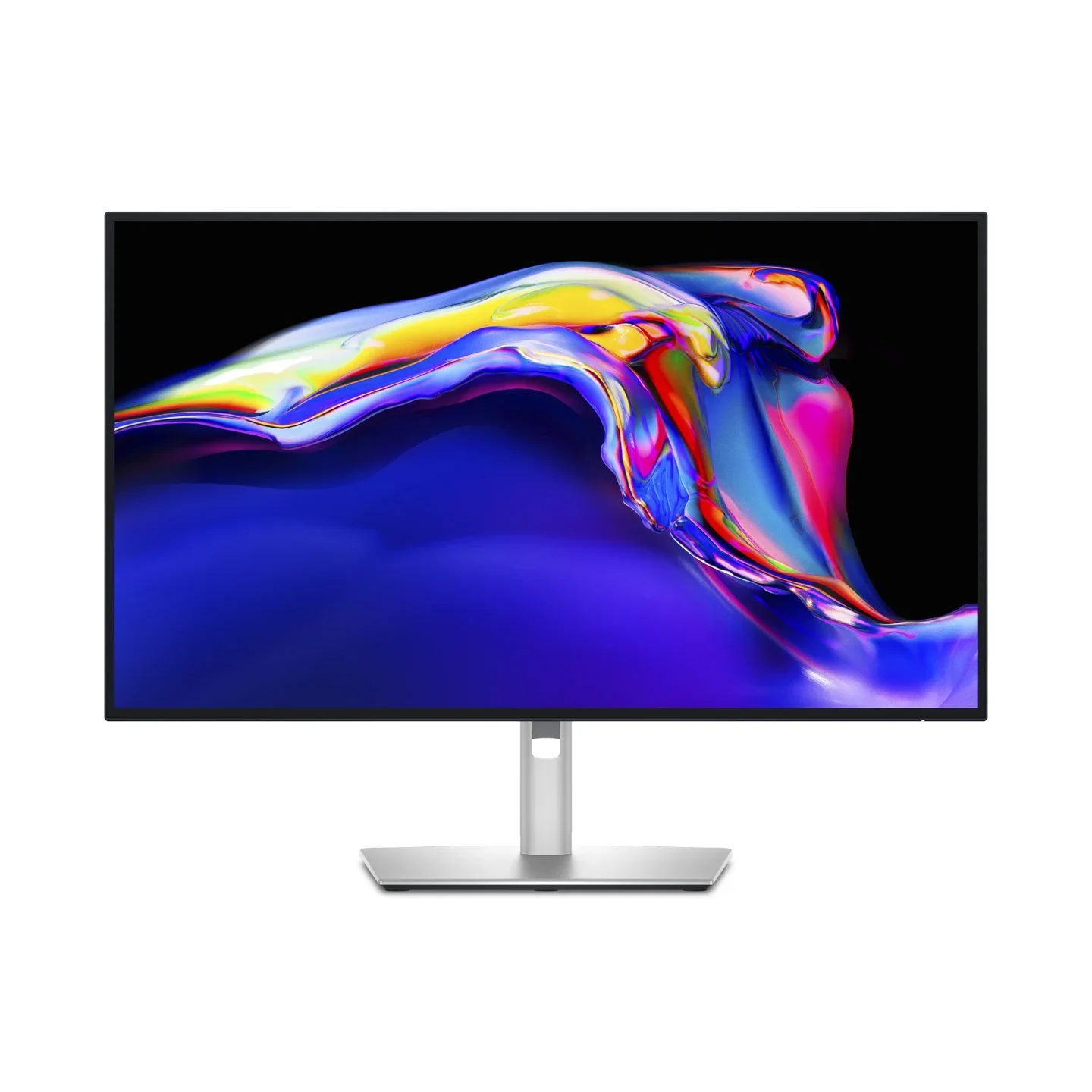
The Dell U2725QE meets
the BenQ GW2486TC
RTINGS's best USB-C monitor and Wirecutter's top 4K pick, with a 140W Thunderbolt dock built in. We tested it head-to-head against the BenQ GW2486TC across 5 key dimensions.
Dell U2725QE
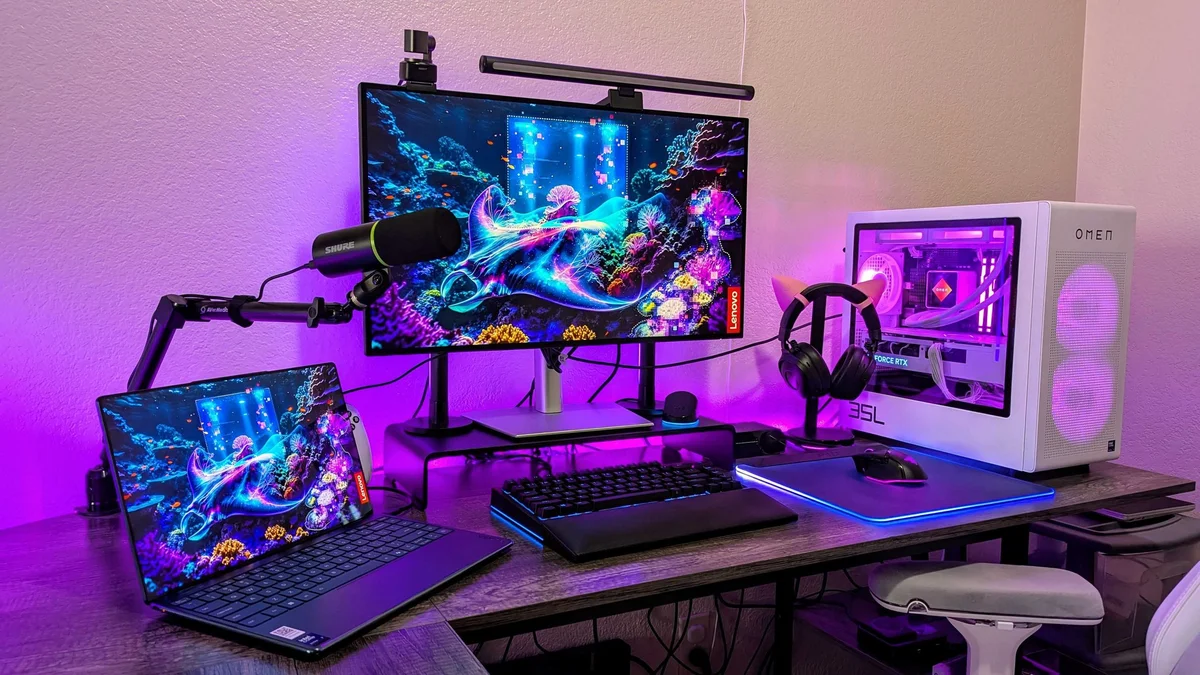
“RTINGS's best USB-C monitor and Wirecutter's top 4K pick, with a 140W Thunderbolt dock built in”



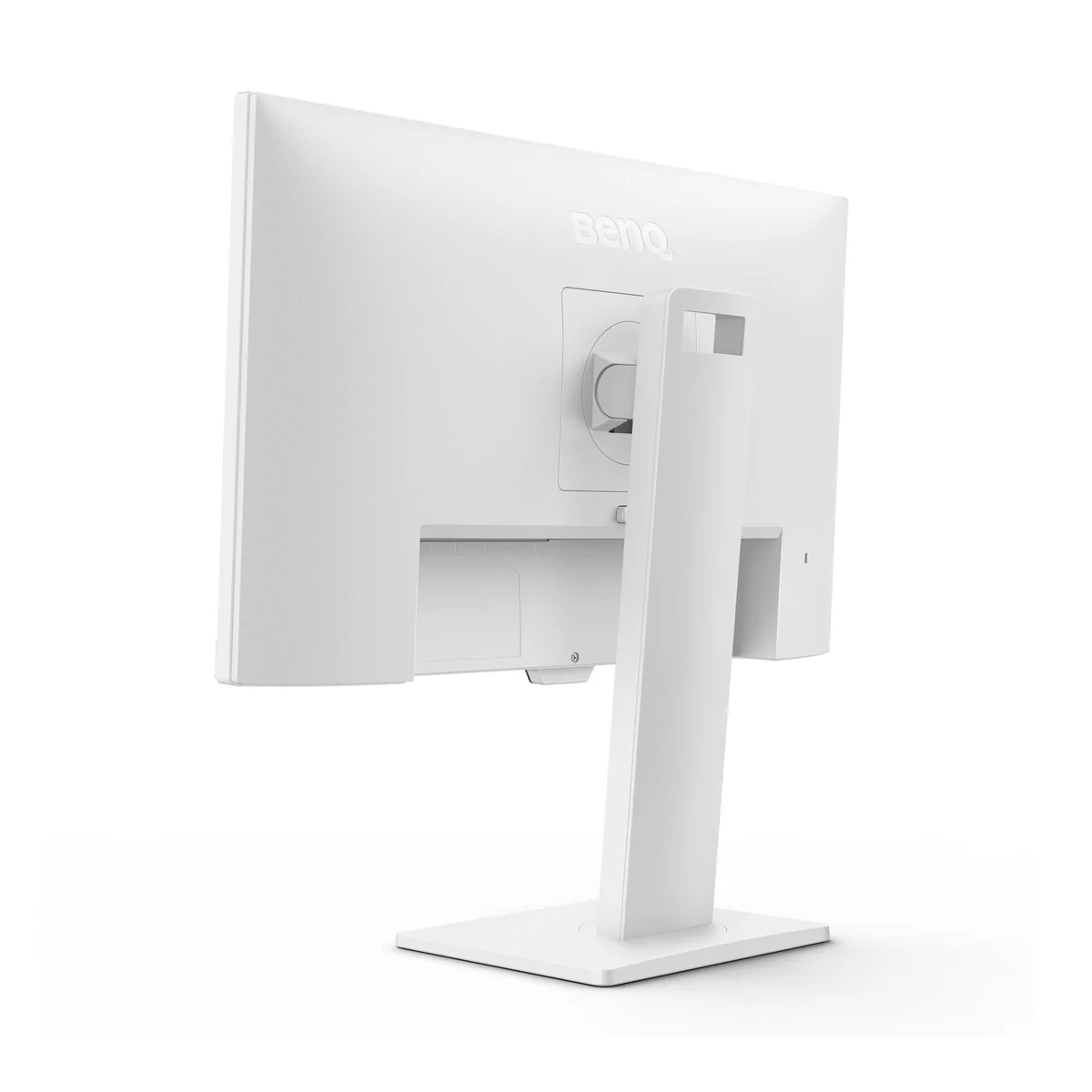
BenQ GW2486TC
“The budget pick at PCMag, Wirecutter and TechRadar, with 65W USB-C and a fully adjustable stand”
Head-to-Head Breakdown
Strengths & Weaknesses
Dell U2725QE
- RTINGS's best USB-C monitor and Wirecutter's top pick in two separate buying guides
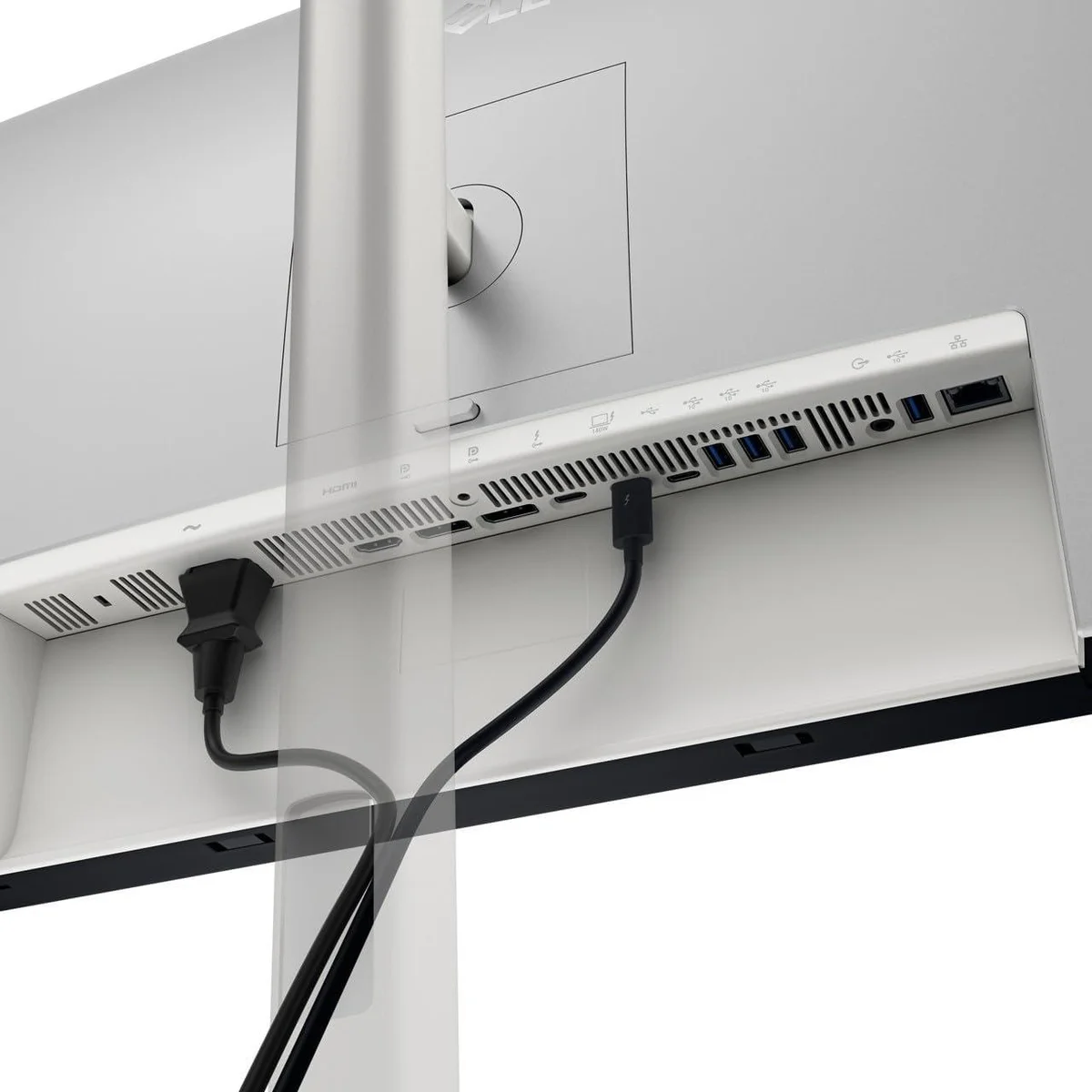
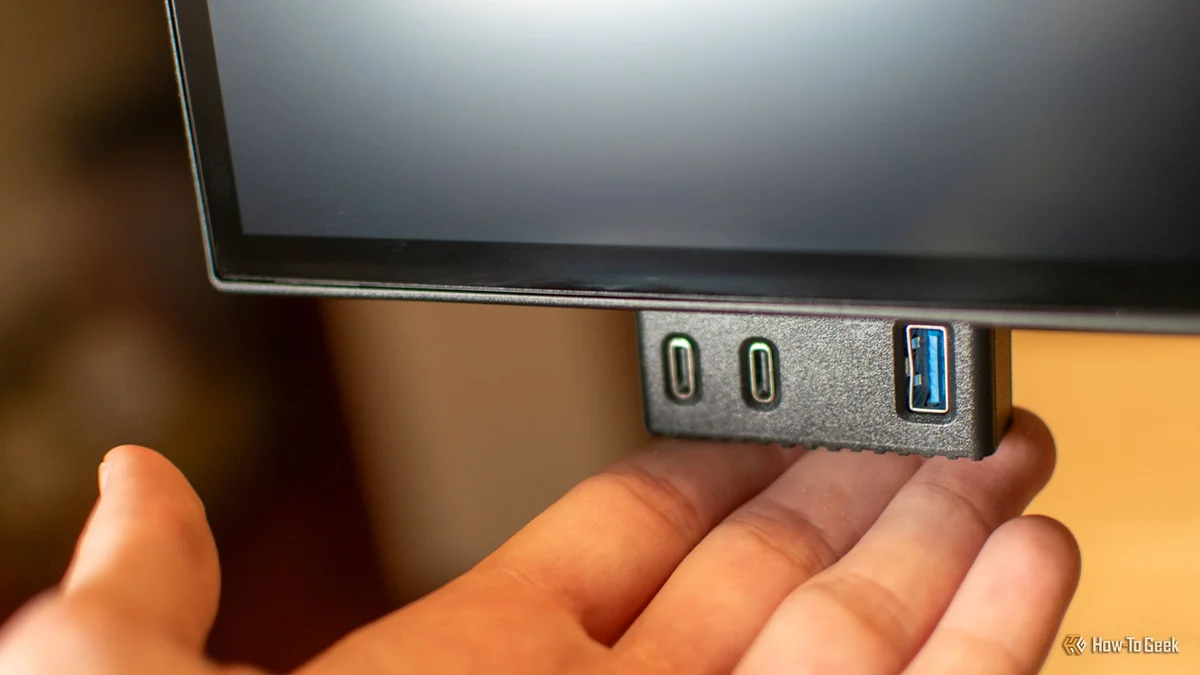
- Thunderbolt 4 with 140W charging, 2.5Gb Ethernet and a KVM switch replace a separate dock
- Wirecutter measured 2,239:1 contrast, more than double most rivals
- Wirecutter found the stand wobbly
- RTINGS saw a pink tint in reflections in very bright rooms
- 4K at 27 inches forces macOS into fractional scaling, which 5K displays avoid
BenQ GW2486TC
- Budget pick at PCMag, Wirecutter and TechRadar, and a PCMag Editors' Choice
- 65W USB-C charges most laptops over a single cable
- Height, tilt, swivel and pivot adjustment, with 130mm of travel per TechRadar
- 1080p makes text look big and multitasking harder, per Wirecutter
- PCMag calls its resolution and 250-nit brightness modest
- No KVM switch, and PCMag found the menu buttons awkward
The Verdict
Our Bottom Line
The Dell U2725QE won because it solves the single biggest pain point of working from home: cable clutter. Plug in one Thunderbolt 4 cable and your laptop charges at 140W, connects to ethernet, drives a 4K 120Hz display, and gains access to a full dock's worth of USB ports. RTINGS and Created Tech independently reached the same conclusion, this monitor makes a dedicated dock obsolete.
Dell U2725QE
The Dell U2725QE won because it solves the single biggest pain point of working from home: cable clutter. Plug in one Thunderbolt 4 cable and your laptop charges at 140W, connects to ethernet, drives a 4K 120Hz display, and gains access to a full dock's worth of USB ports. RTINGS and Created Tech independently reached the same conclusion, this monitor makes a dedicated dock obsolete.
- Laptop users who want one Thunderbolt cable to handle charging, display, Ethernet and USB
- People who read documents or code all day and want sharp 4K text at 120Hz
- Hybrid workers who switch between a work laptop and a personal PC with the built-in KVM
- Desks that need to charge a 16-inch laptop, thanks to 140W power delivery
- Anyone who would rather skip buying a separate docking station
BenQ GW2486TC
Three separate outlets chose the BenQ GW2486TC as their budget monitor. PCMag made it an Editors' Choice at 4.5 stars and calls it exceptional value for a $200 home-office screen, Wirecutter names it its budget pick, and TechRadar ranks it second on its business list. The reason is the feature set. One USB-C cable carries video, data and 65W of power, which is enough to charge most modern laptops, and a DisplayPort output lets you daisy-chain a second screen.
- Budget home offices that need a proper monitor for about $170
- Thin-and-light laptop owners who want single-cable charging
- Small desks where a 24-inch screen fits better than a 27-inch one
- Anyone adding a second screen next to a laptop
- People who want a fully adjustable stand without paying for a premium model